
- Overview
- toxiCALL® 5 — System Tables Update
- toxiCALL® 4 — Update Overview
- toxiCALL® 4 Estimated time and continuity of operations
- toxiCALL® 4 Checklist
- Generic Codes and RADARS Update
- File Downloads
- Clinical Effects and Exposure Reason Update
- Clinical Effects and Exposure Reasons in Search
- Copy your Local Database to other Workstations
- Update System Tables
- Testing
- Work Local Only Mode
- Per Workstation Step-By-Step
Overview #
NPDS 2027 Clinical Effects and Exposure Reason changes #
Effective January 1, 2027, NPDS introduces updated Clinical Effects mapped to MedDRA terminology and two Exposure Reason code changes. These instructions cover toxiCALL® 4 and toxiCALL® 5.
The updates are available through System Tables. In toxiCALL® 4, the Clinical Effects changes also require database structure updates, and the application update accommodates the associated validation rules. These changes are supported by the existing toxiCALL® update procedures.
The January 1, 2027 implementation date is established by NPDS. Please direct deadline questions to NPDS Support.
toxiCALL® requirements #
NPDS 2027 — toxiCALL® 4 Implementation and Testing Notice
CAS has completed internal development and testing of the NPDS 2027 updates. Despite efforts to obtain independent operational testing with poison centers, no center has agreed to participate to date.
Controlled System Table Release
CAS will work directly with individual poison centers to coordinate a controlled release of the NPDS 2027 System Tables. These updates are not currently available through general distribution. This approach allows CAS and participating poison centers to work together through implementation and verification before broader availability is considered.
Rollback Protection
CAS has developed a rollback process to help protect poison center operations if concerns are identified during implementation.
Screenshot Updates
Some screenshots in this documentation reflect the previous NPDS release and will be updated soon. Please follow the NPDS 2027 written instructions and file names when performing the update.
Please schedule time with CAS Support
Please contact CAS Support to schedule your NPDS 2027 implementation session. CAS will provide scheduling details directly and work with your center through the System Table release, central update, and first-workstation verification, then prioritize active specialists before updating remaining workstations.
toxiCALL® 4
The working application version is v4.7.46. The new executable does not have to be installed before the database and System Table updates. Existing versions can continue operating, but in some cases, using the new codes may not pass validation for closing until the updated executable is installed. Once the new version has been deployed, other workstations starting toxiCALL® will be prompted to use that version.
toxiCALL® 5
Only the NPDS 2027 System Tables update is needed. No application version updates, database structure updates, or individual workstation installations are required. See toxiCALL® 5 — System Tables Update below.
toxiCALL® 5 — System Tables Update #
For toxiCALL® 5, the NPDS 2027 Clinical Effects and Exposure Reason changes are delivered through System Tables. There is no executable replacement, database structure update, coordinated workstation installation, or operational downtime. The system tables can be updated while specialists continue to use toxiCALL® 5
toxiCALL® 4 — Update Overview #
The following instructions retain the established Network Database, Local Database, System Tables, and per-workstation procedures used in previous NPDS releases.
Important
Implementation order matters. The database structure update must precede release of the dependent FieldCodeValue and SearchView System Tables. The additional Network-only SearchViewList update is then performed after the System Tables have been released and toxiCALL® has restarted.
toxiCALL® 4 Estimated time and continuity of operations #
The Network Database structure script typically takes seconds; releasing System Tables and receiving the updated tables when toxiCALL® starts can take longer. The central update may take approximately 15 minutes in an efficient environment, with the actual time depending on the database and network response times.
ByPass Local is configured per workstation. A center may use both configurations. The implementation team applies the appropriate procedure to each workstation.
| ByPass Local enabled | ByPass Local disabled | |
|---|---|---|
| During the central update | Specialists continue normal work. | Active specialists continue working in Work Local Only mode. |
| Local Database handling | Update the Local Database structure or use the center’s previously updated copy when appropriate. | If local cases exist, update the existing Local Database structure; do not replace the file. |
| New Clinical Effects available | After the applicable System Table and individual workstation updates. | After the applicable System Table and individual workstation updates. |
| Return to normal operation | When the individual workstation update is complete. | When the individual workstation update is complete; starting toxiCALL® normally clears Work Local Only mode. |
The active specialists are updated first, one workstation at a time. Remaining workstations can be completed afterward without delaying a specialist whose workstation has already been updated.
toxiCALL® 4 Checklist #
- Determine which active workstations have ByPass Local enabled or disabled. For active workstations with ByPass Local disabled, enter Work Local Only mode before updating the Network Database.
- Update the Network Database structure.
- Update the first workstation: replace
Toxicall.exeand update its Local Database structure, or use the center’s prepared, updated Local Database copy where appropriate. - Release the NPDS 2027 System Tables.
- Restart toxiCALL® and perform the additional Network-only SearchViewList update.
- Test Clinical Effects and Exposure Reasons in Case List – Advanced and in case entry, then verify upload/download for workstations using a Local Database.
- Update the remaining workstations, prioritizing active specialists. Each workstation returns to normal operation after its update.
- Update each Archive Database after production workstations have been updated.
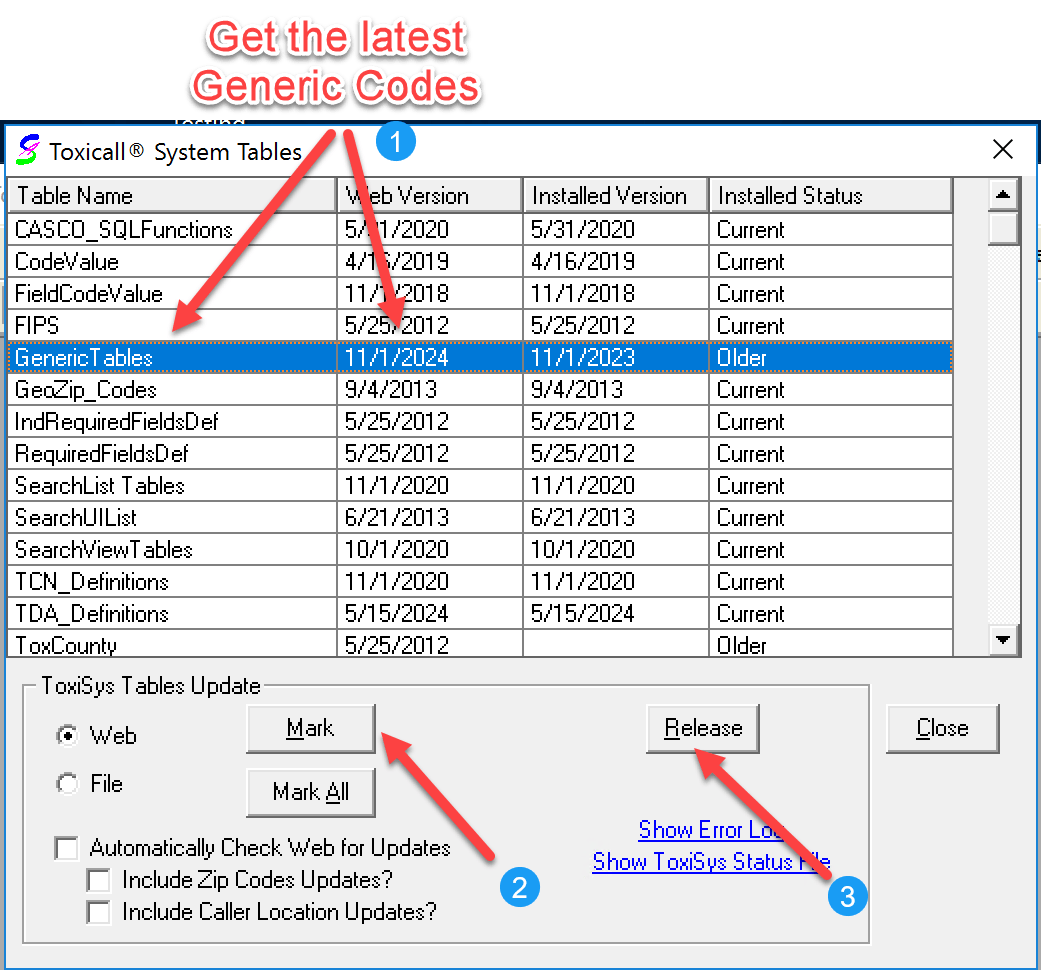
Generic Codes and RADARS Update #
Release separately, when applicable
These definitions may be released separately from the NPDS 2027 Clinical Effects and Exposure Reason updates.
- Generic Tables
- TCN_Definitions
- SearchList Tables
Generic Codes and RADARS ONLY
Do not release all System Tables at this stage. The database-dependent FieldCodeValue and SearchView tables are released later in the procedure, after the applicable structure updates.
Generic Codes/System Tables update instructions
Generic Codes discussion forum
File Downloads #
The latest toxiCALL® 4 release files are available here. The NPDS 2027 update uses the following files.
Toxicall.exe #
Toxicall.exe is the executable replacement for the existing application. The working version is v4.7.46. Its validation updates are needed to close some cases involving the new codes. It can be distributed as part of each workstation’s update rather than before the central database work.
Tox4 NPDS 2027 Add ToxExpCE Columns.sql #
Tox4 NPDS 2027 Add ToxExpCE Columns.sql updates the structures of the:
- Network Database
- Local Databases
- Archive Databases
Run it with Tools → Data Migration → Check for Structure Updates against the selected database. Update the Archive Databases after the production workstations.
Tox4_NPDS2027_SearchViewList_Network_Update.sql #
Tox4_NPDS2027_SearchViewList_Network_Update.sql runs against the Network Database only, using Check for Structure Updates. Run it after the System Tables have been released, immediately after restarting toxiCALL®.
Clinical Effects and Exposure Reason Update #
NPDS 2027 introduces updated Clinical Effects and two Exposure Reason code changes. The toxiCALL® 4 structure update prepares the databases to store the revised Clinical Effects data. The System Tables provide the updated definitions and search values; the toxiCALL® 4 executable update addresses validation rules.
The following procedures use the same Network, Local, and Archive Database update tools as previous NPDS releases. They are designed to support per-workstation updates without taking the entire center offline.
Clinical Effects and Exposure Reasons in Search #
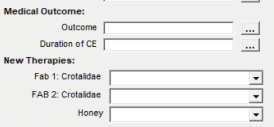
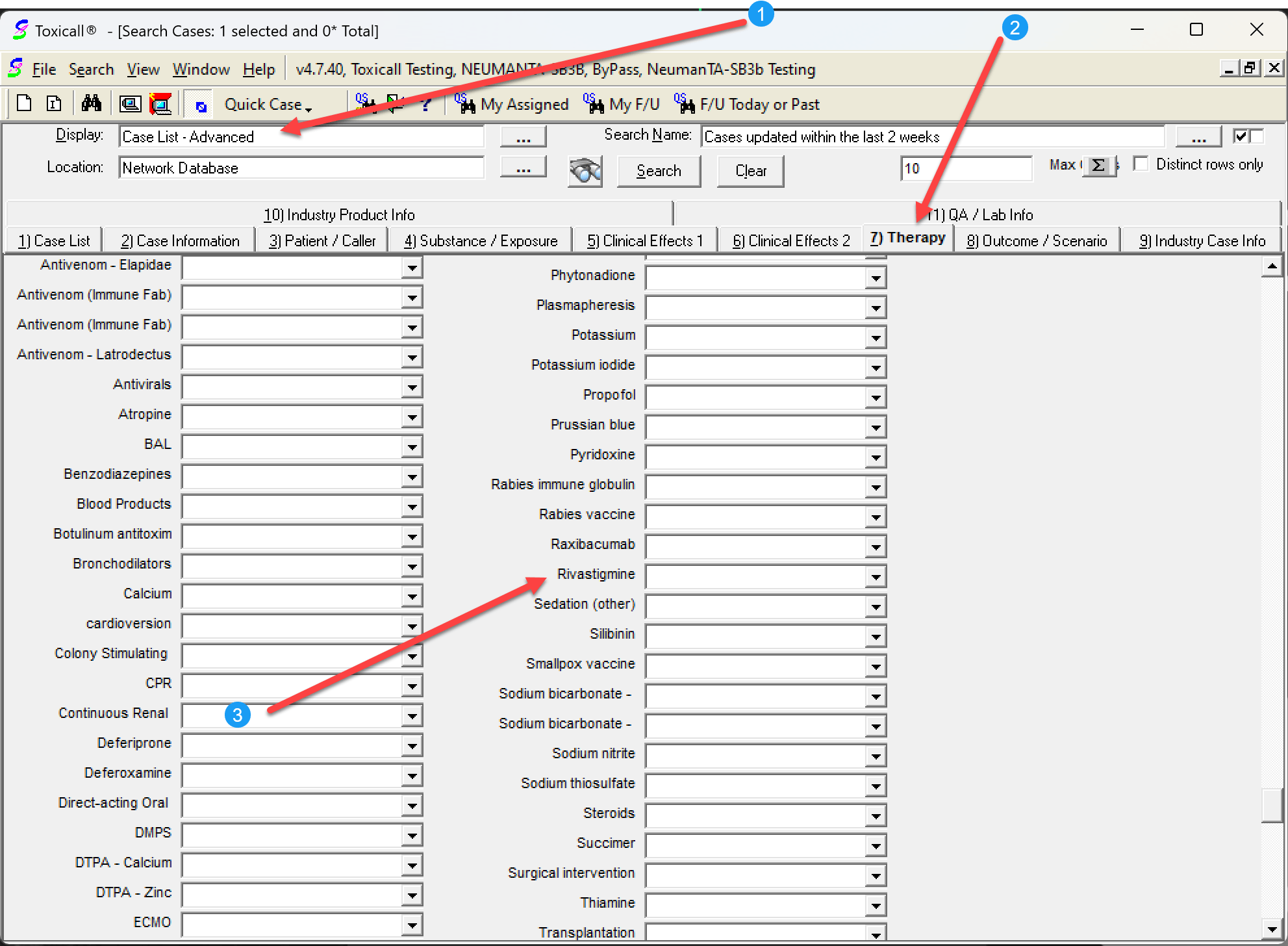
The updated Clinical Effects and Exposure Reasons can be checked in Case List – Advanced. The original search screen images are retained below as references until updated NPDS 2027 screenshots are available.

All toxiCALL® 4 File Downloads #
Open the toxiCALL® 4 releases page.
SQL and MS Access Update Script #
The same structure script is used for Network, Local, and Archive databases:
Tox4 NPDS 2027 Add ToxExpCE Columns.sql
NOT in ByPass Local Mode #
Work Local Only — ByPass Local disabled
Before the Network Database structure update, active specialists using Local Databases can enter Work Local Only mode between calls. They can continue managing cases locally while network upload/download is unavailable.
Preserve locally stored cases: When a specialist has worked in Work Local Only mode, update the existing ToxiLoc.mdb using the structure script. Do not replace it with another workstation’s database.
After updating that individual workstation, starting toxiCALL® normally clears Work Local Only mode.
See the Work Local Only instructions for screenshots.
ByPass Local Mode #
On a workstation with ByPass Local enabled, specialists can continue working normally while the center-wide update is performed. The Local Database can be updated when that workstation is reached. Downloading cases to an outdated Local Database is not available until its structure is updated.
ByPass Local is a workstation setting; use the relevant procedure for each workstation, including at centers with mixed configurations.

Update your Network Database #
Network and Local databases must have compatible structures for uploading/downloading or moving cases between them. A workstation using an outdated Local Database cannot transfer cases to/from the updated Network Database until its own database has been updated.
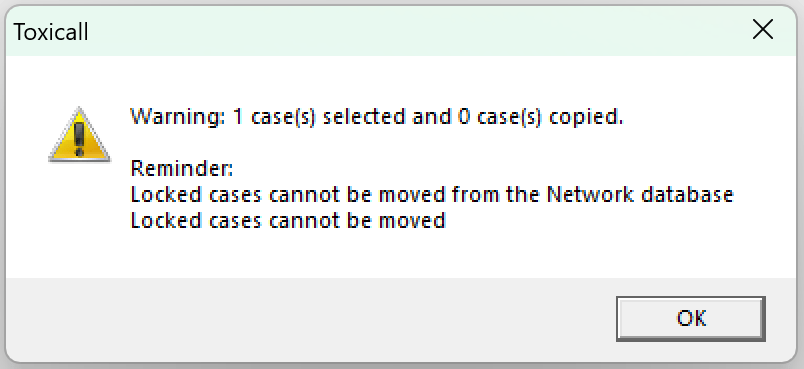
Log into toxiCALL® with Supervisor rights and close all Case and Search windows.
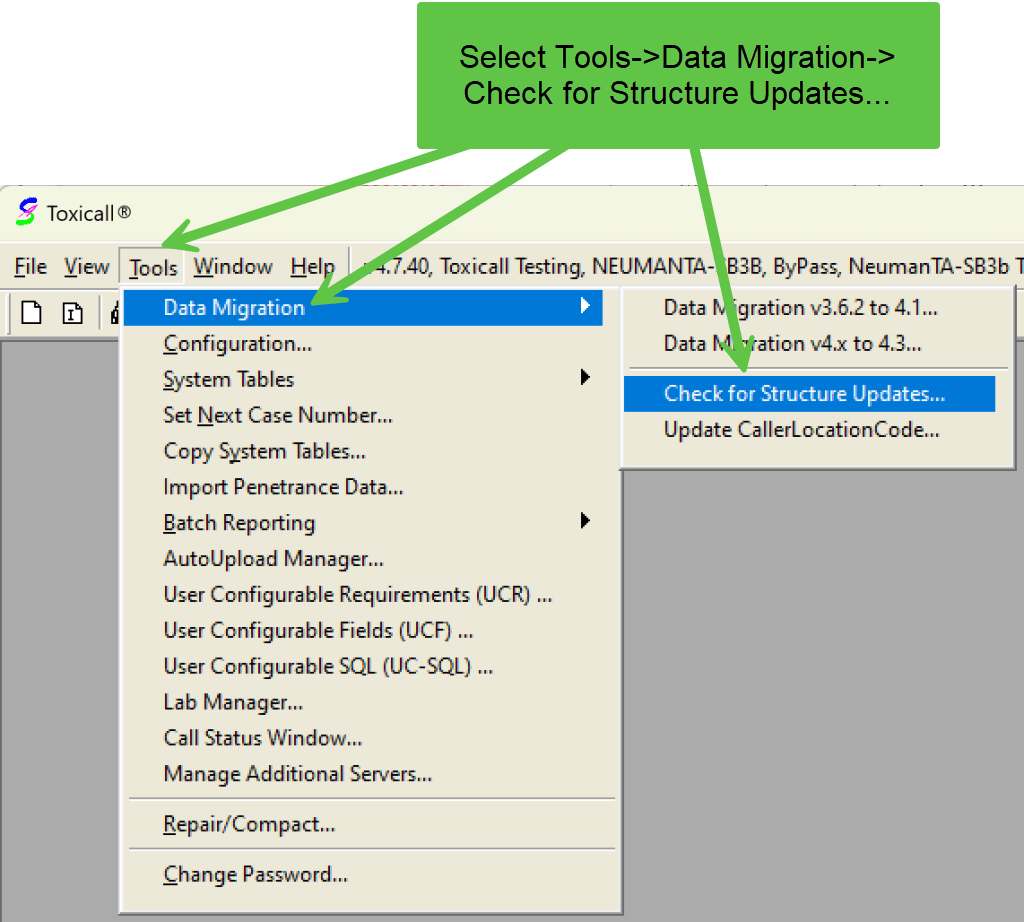
- From the Tools menu, select Data Migration → Check for Structure Updates…

- Using the three-dot lookup, select
Tox4 NPDS 2027 Add ToxExpCE Columns.sql. - Select Network Database.

- Confirm the selected database and choose Yes to proceed.
If you attempt to run the script again after the database has already been updated, an error may indicate that the column already exists.
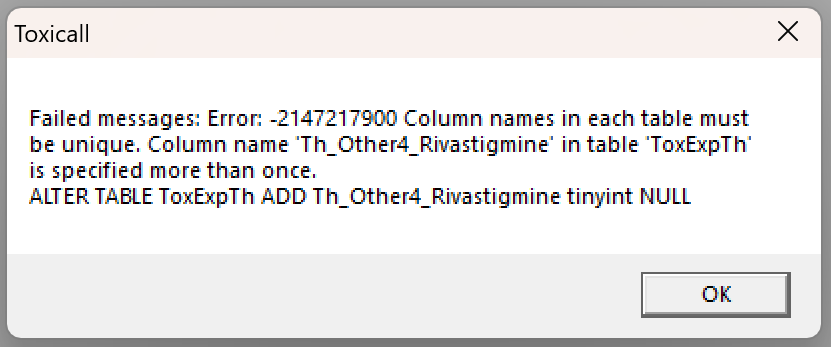
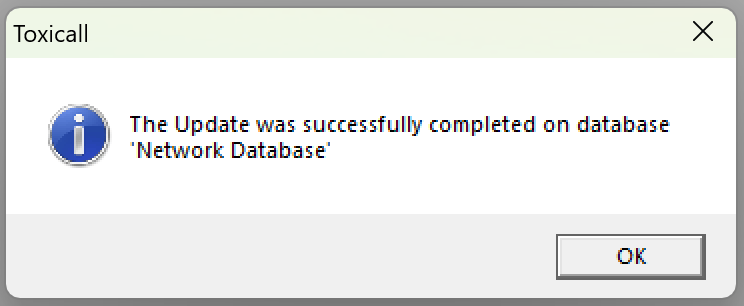
Confirm the successful update. Other messages may indicate that database permissions are insufficient or that the structure was already updated.
Update your Local Database #
The Local Database structure update can be run with existing cases still stored locally. Use this method whenever local cases must be retained, including cases entered while working in Work Local Only mode.
Alternative Solution Options
A center may update and test its own ToxiLoc.mdb, then distribute the prepared copy to other workstations only when no local cases need to be retained. Preserve a backup of the destination database before replacement.
- Open Check for Structure Updates and select
Tox4 NPDS 2027 Add ToxExpCE Columns.sql. - Select Local Database.
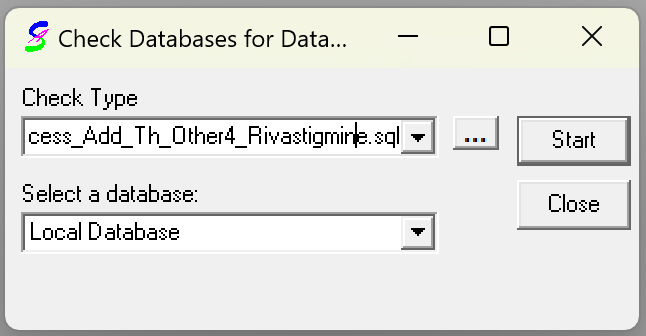
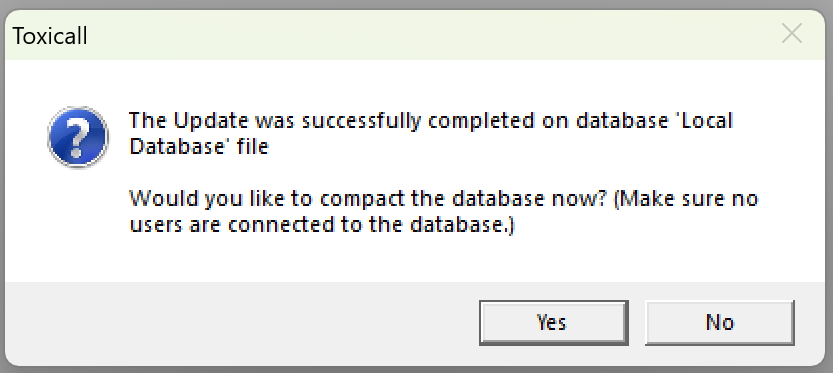
- Confirm the database selection; choose Yes when prompted to compact the database.
After the Local Database has been updated and verified, it can be used as the center’s prepared copy for other workstations that have no local cases to preserve.
Copy your Local Database to other Workstations #
Local Database files #
A center may copy its own updated and verified ToxiLoc.mdb to other workstations only if no local cases need to be retained on the destination workstation. Keep a backup of the existing destination database before replacing it. Workstations that accumulated cases in Work Local Only mode must instead receive the structure update on their existing file.
If applicable to the center’s installation, use its own updated ToxiBlnk.mdb as well.
The Local Database is typically located in:
C:\Program Files (x86)\CAS\Toxicall
The installed location may differ by center or user. Administrators may be able to perform the copy remotely through an administrative share while toxiCALL® is closed on the workstation, subject to the permissions available at that site.
Virtual Environments #
In virtual installations, each user or virtual machine may have its own Local Database. Update every applicable copy in its actual location. A StartToxicall.bat launch procedure may indicate this type of configuration. Contact CAS Support if the locations are unclear.
New Workstation Installation #
When installing additional toxiCALL® 4 workstations after the update, ensure the application executable and the applicable Local Database files are at the updated release level.
Update System Tables #
After the Network Database structure and first-workstation update, release the NPDS 2027 System Tables. Confirm a release date of November 1, 2026 or later on the applicable tables.
Release separately, when applicable
These independent definitions can be released separately from the database-dependent 2027 changes.
- Generic Tables
- TCN_Definitions
- SearchList Tables
CodeValue — Exposure Reason changes
The CodeValue update provides the Exposure Reason changes. Older toxiCALL® 4 versions can continue operating, but some cases involving new codes may require v4.7.46 to pass validation and close.
- CodeValue
Requires Database Structure Update
Do not release these tables until the applicable database structure updates have been performed.
- FieldCodeValue
- SearchView Tables
The System Tables and database structures must remain compatible for case saving and transfers.
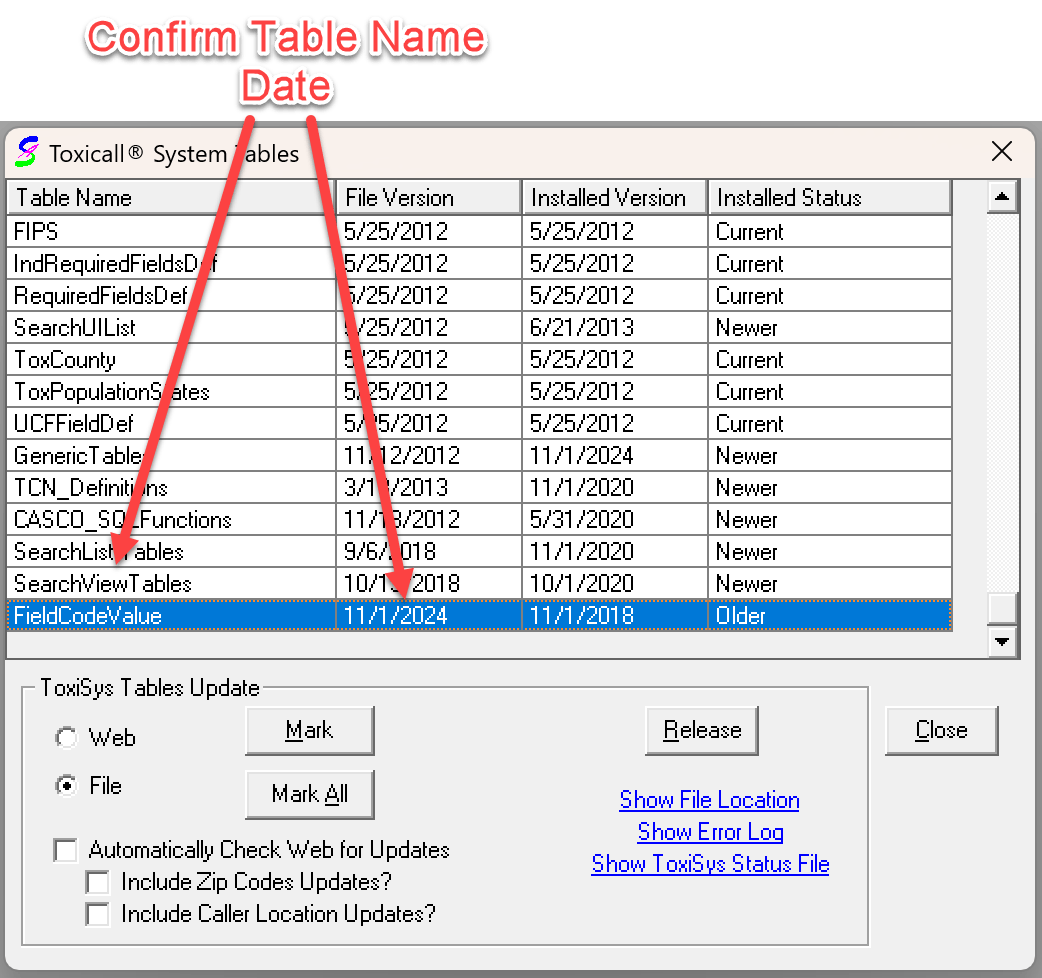
Double-click to change the Installed Status to Install, and select Release.
More details on updating System Tables.
Additional Network-only SearchViewList Update #
After releasing the NPDS 2027 System Tables, restart toxiCALL® so the new tables are applied. Then perform this additional update against the Network Database only, before proceeding to testing.
- Open Tools → Data Migration → Check for Structure Updates….
- Select
Tox4_NPDS2027_SearchViewList_Network_Update.sql. - Select Network Database.
- Execute the update and confirm completion.
Testing #
Perform the following checks on the first updated workstation before updating the remaining workstations.
Check the Case List – Advanced Search #
- Start toxiCALL® and open Case List – Advanced.
- Confirm the updated Clinical Effects appear in the appropriate search tab(s).
- Confirm the updated Exposure Reason values are available.
Check Clinical Effects and Exposure Reason in Case Entry #
Open a case and confirm that the updated Clinical Effects and Exposure Reason choices can be selected. Save the case and check the applicable validation behavior.

Testing Download/Upload Cases #
For a workstation using a Local Database, save a case to the Network Database and download a case from the Network Database. This verifies compatibility between the updated Local and Network Database structures.
Work Local Only Mode #
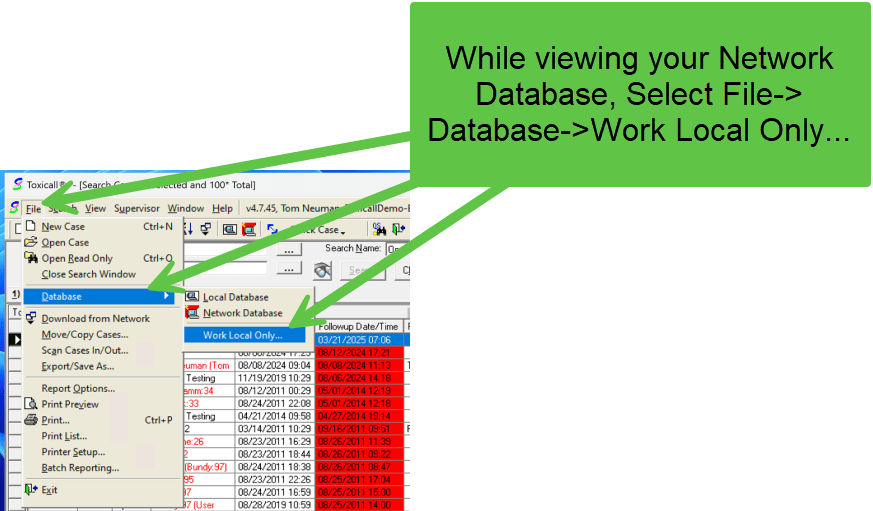
Work Local Only mode allows active specialists using Local Databases to continue entering and managing cases while the center update is being performed. Because those workstations cannot upload/download until their Local Database has been updated, this mode allows work to continue without taking the entire call center offline.
Specialists may download any cases they need to manage before entering Work Local Only mode. Switching modes takes seconds, although arranging the change between calls may take longer.
- Select Work Local Only mode.
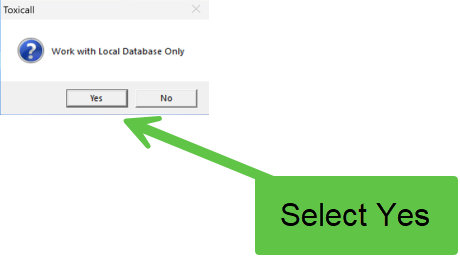
- Confirm the selection.
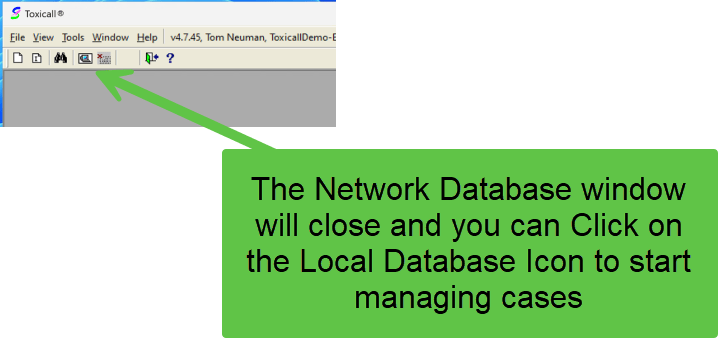
- Confirm the Network Database icon indicates Offline.
Preserve cases entered in Work Local Only mode
Update the existing ToxiLoc.mdb using Tox4 NPDS 2027 Add ToxExpCE Columns.sql. Do not replace a database containing local cases with a copy from another workstation.
When the individual workstation update is finished, start toxiCALL® normally. Work Local Only mode is no longer active and the specialist can resume normal upload/download operations. No Windows restart is needed.
Per Workstation Step-By-Step #
After the first workstation has been updated and the tests completed, update remaining workstations in active-specialist priority order. Workstations can return to normal operation individually; there is no need to wait for the entire center to finish.
Two operations are performed for each workstation:
- Replace
Toxicall.exewith the current executable (working version v4.7.46). - Update that workstation’s existing Local Database using
Tox4 NPDS 2027 Add ToxExpCE Columns.sql, or replace its Local Database with the center’s own prepared, updated copy when no local cases require preservation.
The following steps show the existing in-place Local Database update method. The person running the structure update needs Supervisor rights in toxiCALL®. File replacement may require IT permission to write to the application folder.
Locate the shared folder containing the release files.
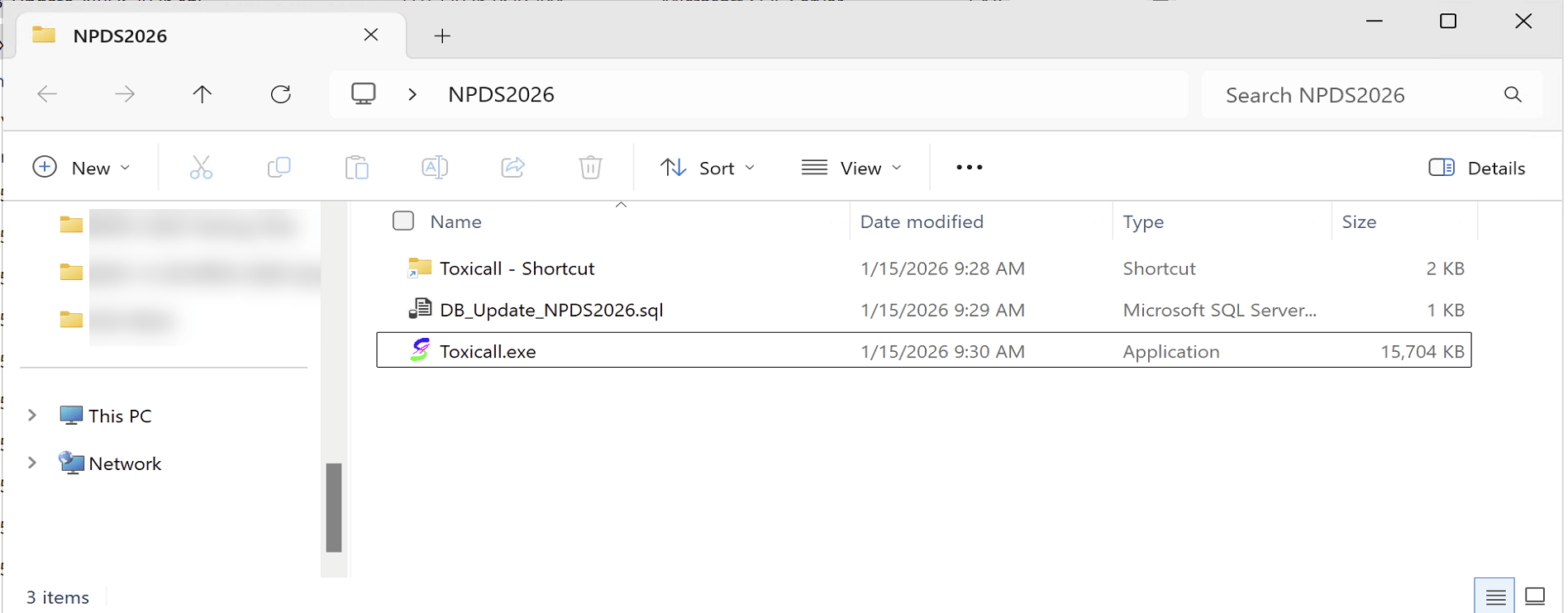
Select the updated Toxicall.exe.
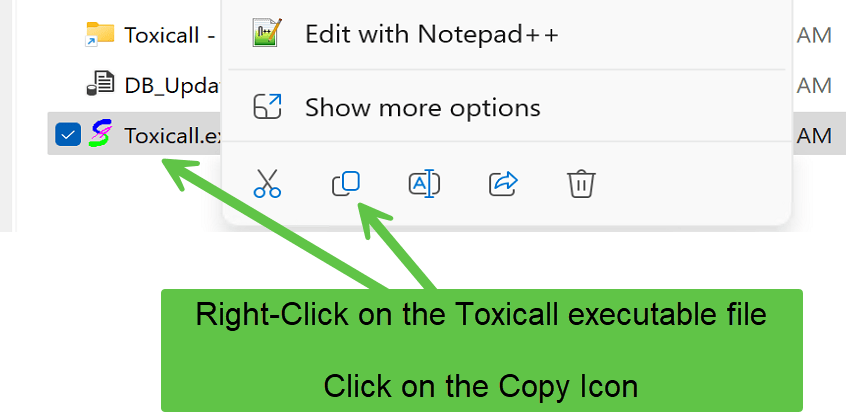
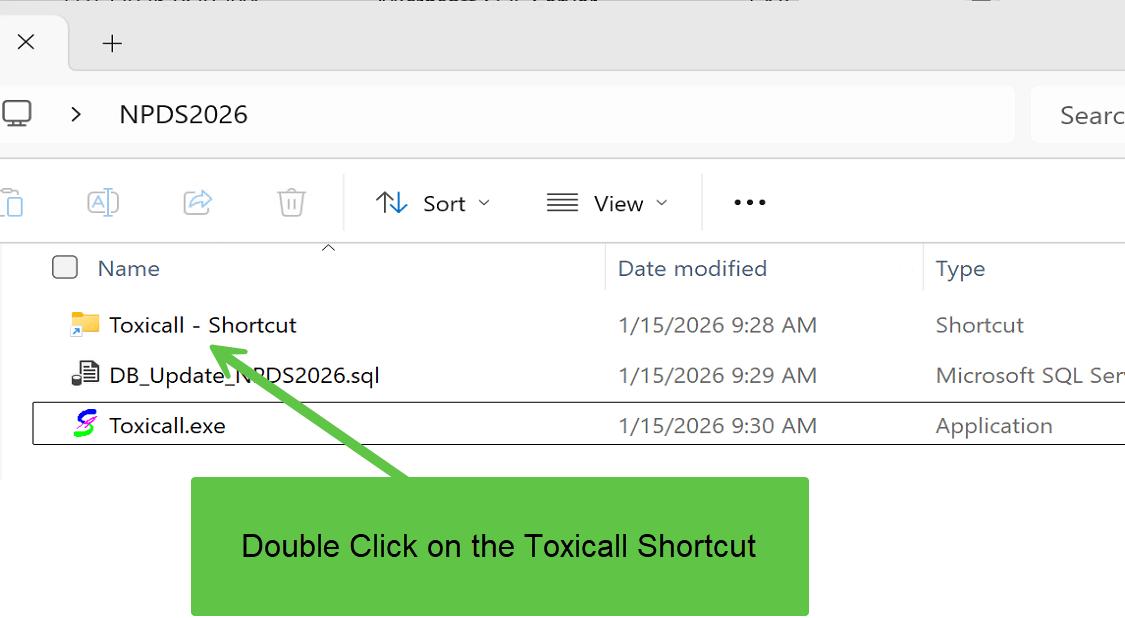
Navigate to the installed toxiCALL® program folder.
Copy the updated executable.
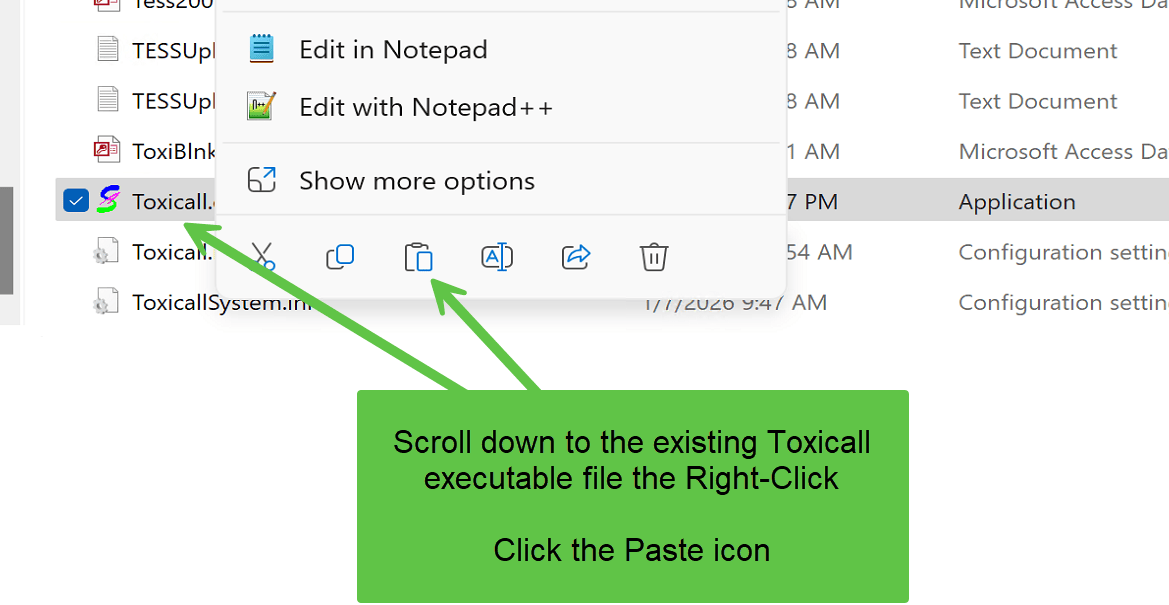
Paste the updated executable into the application folder.
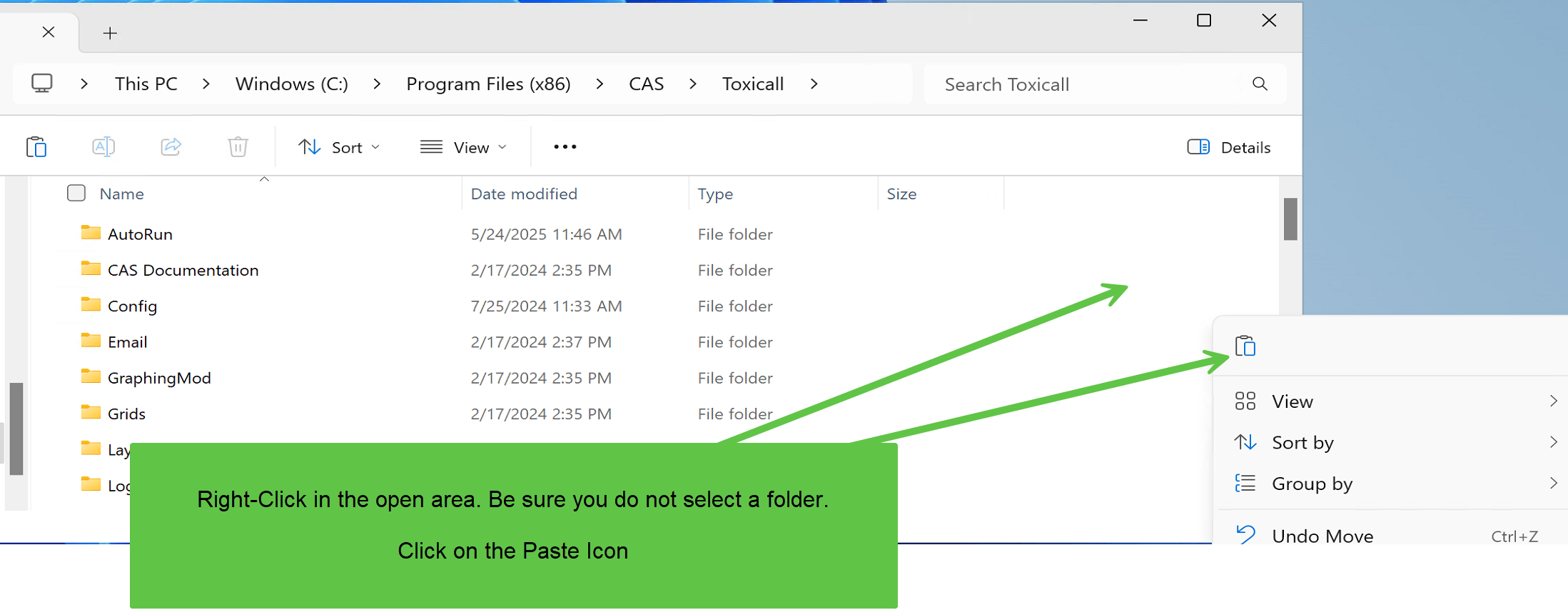
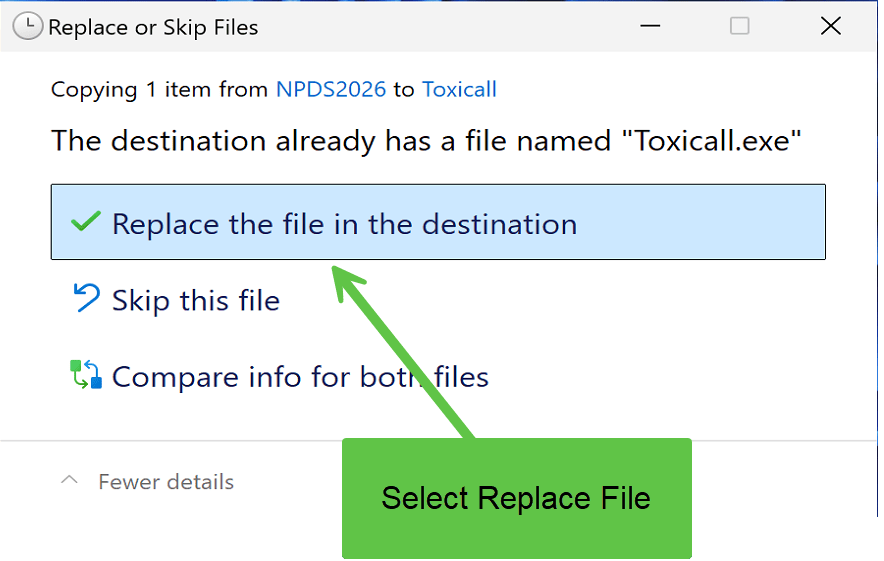
Select Replace to overwrite the old executable.
Start toxiCALL® normally.
With Supervisor rights, open Check for Structure Updates.
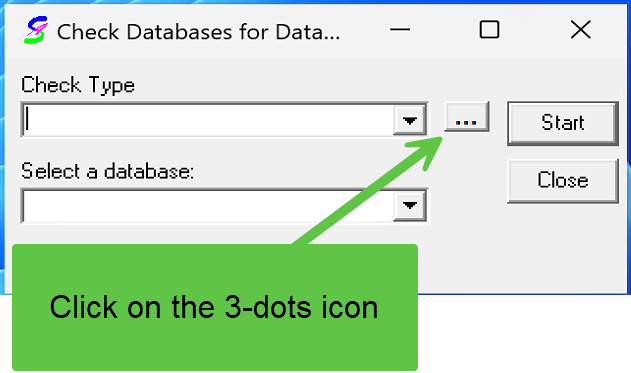
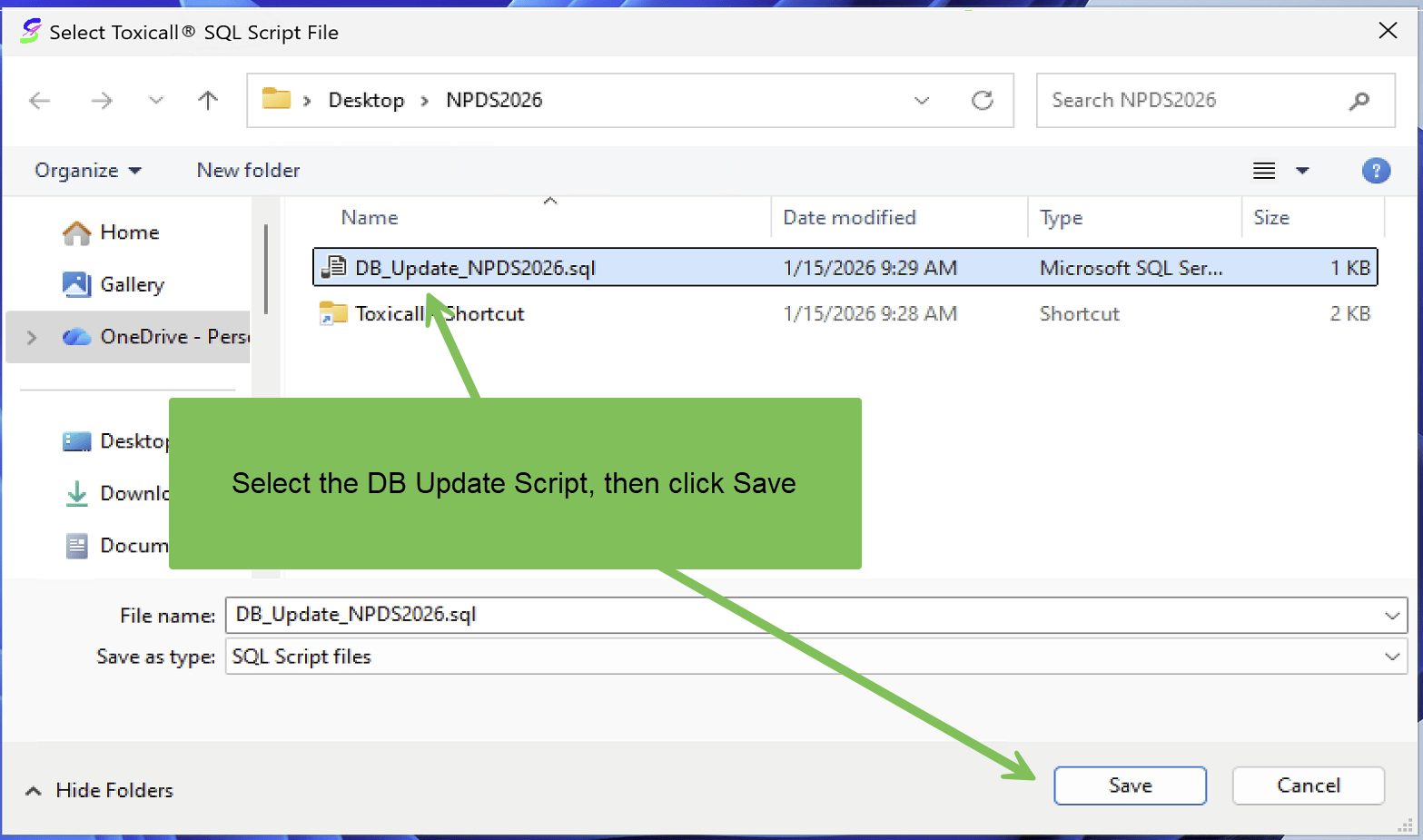
Select Tox4 NPDS 2027 Add ToxExpCE Columns.sql.
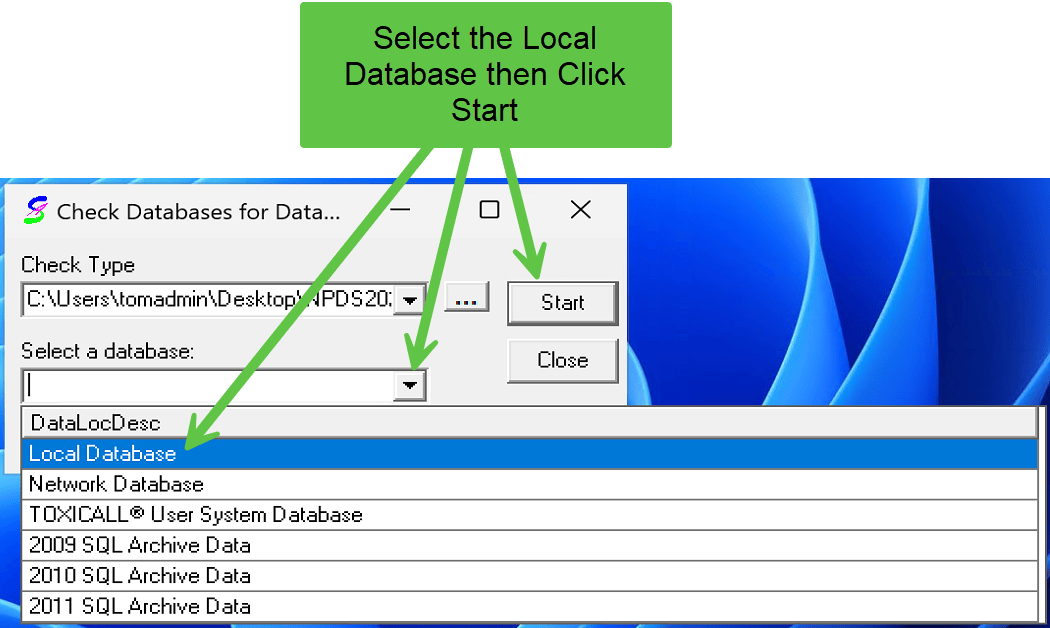
Select Local Database and start the structure update. This operation itself generally takes only seconds.
Confirm the Local Database selection.
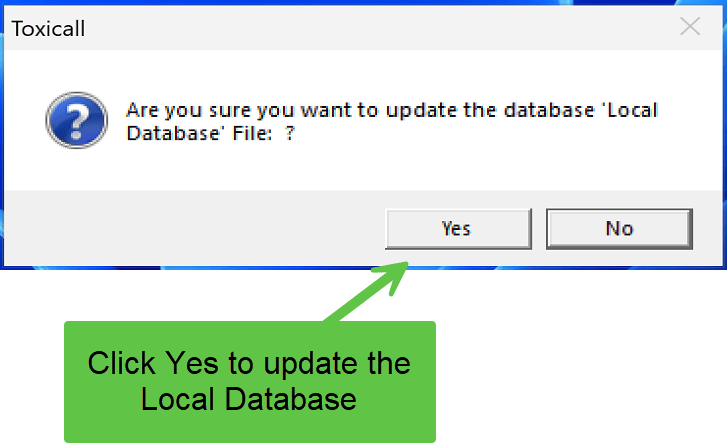
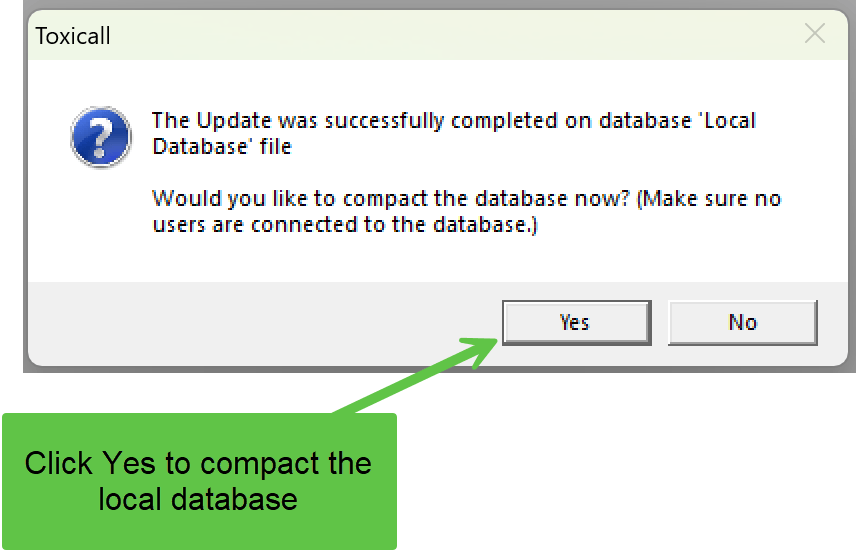
Choose Yes to compact the database when prompted.
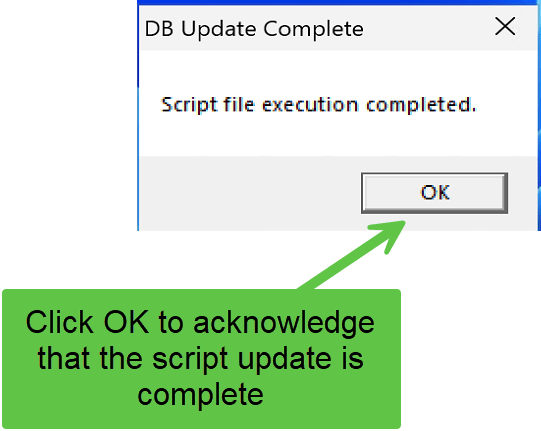
Confirm the structure update completed successfully.
Exit and restart toxiCALL® normally. Work Local Only mode, if previously enabled, clears automatically.
A workstation using the center’s own previously updated Local Database copy does not need the Local Database script repeated against that replacement file. Preserve the original database as a backup, and only use this method when no cases need to be retained from the workstation’s existing Local Database.
Update Archive Databases #
After production workstations have been updated, repeat the Network Database structure update procedure for each Archive Database:
- Open Tools → Data Migration → Check for Structure Updates… with Supervisor rights.
- Select
Tox4 NPDS 2027 Add ToxExpCE Columns.sql. - Select the appropriate Archive Database and complete the update.
- Repeat for each Archive Database.
Archive case transfers require compatible database structures.


